Friday, May 4, 2012

Selena Gomez in bikini Picture

Selena Gomez

Born: July 22,1992    
American    
Actress/Singer-songwriter/Fashion Designer    
Height: 5ft. 5.75in.    
Measurements: 34-24-36    
Website: www.selenagomez.com

Selena Marie Gomez is an American actress, singer, and entrepreneur, best known for portraying Alex Russo in the Emmy Award-winning Disney Channel television series Wizards of Waverly Place. She subsequently ventured into feature films and has starred in the television movies Another Cinderella Story, Wizards of Waverly Place: The Movie, and Princess Protection Program. She made her starring theatrical film debut in Ramona and Beezus.

Jennifer Lopez in Sexy Bikini at Beach

Jennifer Lopez in Sexy Bikini at Beach

Jennifer Lawrence Latest Bikini Picture

Jennifer Lawrence
Jennifer Lawrence    
Born: August 15, 1990    
American    
Actress    
Height: 5 ft. 7.5 in.    
Measurements 34-24-30    
Website: Jennifer-lawrence.com    

Jennifer Shrader Lawrence is an American film and television actress. She has had lead roles in TBS's The Bill Engvall Show and in the independent films The Burning Plain and Winter's Bone, for which she received critical acclaim and a nomination for the Academy Award for Best Actress. At age 20, this made her the second youngest actress to ever be nominated for the award. She was cast 
as Katniss Everdeen in the upcoming 2012 film, The Hunger Games, which is based on the first book in The Hunger Games trilogy by Suzanne Collins.

Sunday, April 22, 2012

Add Two Sidebar Columns below Main Sidebar in Blogger

I have told you about creating three columns in Blogger template. Many of us try to avoid this as it may sometimes look clumsy but we need widget sections to add some blogger gadgets. Now if you want to add two small sidebar columns below main sidebar in your blogger template, then I will tell you how to do it.


So let's start!

First go to Design > Edit HTML and backup your template.

1. Find the below section:


#sidebar-wrapper {

width:220px;

float:right;

word-wrap:break-word;

overflow:hidden;

}


2. And just below it add the following codes:
#right-col {

width:48%;

float:right;

word-wrap:break-word;

overflow:hidden;

}

#left-col {

width:48%;

float:left;

word-wrap:break-word;

overflow:hidden;

}


3. Now find:


<div id='sidebar-wrapper'>

<b:section class='sidebar' id='sidebar' preferred='yes'/>

</div>


4. And add the bold codes or replace the whole code with: 


<div id='sidebar-wrapper'>

<b:section class='sidebar' id='sidebar' preferred='yes'/>

<b:section class='sidebar' id='left-col' preferred='yes'/>

<b:section class='sidebar' id='right-col' preferred='yes'/>

</div>


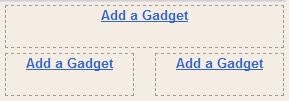
These bold snippets are added which would actually add two widget sections
 below the main sidebar. Preview your template for any errors and save it.

Update: Some of you are having trouble adding the two small sidebar
columns in their templates and may be getting an XML error. So, here's the solution:
You must be having widgets in your sidebar like:


<div id='sidebar-wrapper'>

<b:section class='sidebar' id='sidebar' preferred='yes'>

< ..widgets here.. >
</b:section>

</div>


 Put the bold codes below </b:section> as shown below:


<div id='sidebar-wrapper'>

<b:section class='sidebar' id='sidebar' preferred='yes'>

< ..widgets here.. >

</b:section>

<b:section class='sidebar' id='left-col' preferred='yes'/>

<b:section class='sidebar' id='right-col' preferred='yes'/>

</div>

Now go to Design > Page Elements and check for your newly added two
 small sidebars below you main sidebar.

Add Three Columns in Footer to Blogger

Keeping you sidebars clean makes your blog look good. This is where the role of the columns in footer section comes in. Also it will give your blog a new style. For example, see at the bottom of my blog. This simple tutorial will explain how to do create and add three sidebar columns to footer section in Blogger templates.


1. Go to Design > Edit HTML and first backup your template.


2. Move your gadgets/widgets (if any) from the footer section to your sidebar.


3. Find the closing "]]></b:skin>" tag and immediately before this line, add the following styling definitions and properties:


#footer-left {
width: 33%;
float: left;
margin:5px;
text-align: left;
}
#footer-center {
width: 34%;
float: left;
margin:5px;
text-align: center;
}
#footer-right {
width: 33%;
float: right;
margin:5px;
text-align: right;
}
#footer-column-container {
clear:both;
}
.footer-column {
padding:5px;
}


3. Find the codes:


<div id='footer-wrapper'>
<b:section class='footer' id='footer'/>
</div>


And replace this section with the below codes to add three widget sections to blogger footer:


<div id='footer-wrapper'>
<div id='footer-column-container'>
<div id='footer-left'>
<b:section class='footer-column' id='col1' preferred='yes' style='float:left;'/>
</div>
<div id='footer-center'>
<b:section class='footer-column' id='col2' preferred='yes' style='float:left;'/>
</div>
<div id='footer-right'>
<b:section class='footer-column' id='col3' preferred='yes' style='float:right;'/>
</div>
<div style='clear:both;'/>
</div>
</div>


5. Preview for any error and save it. Go to Design > Page Elements, you will find out that you have added three columns in Blogger footer section.

Now move and add some of the widgets there and see how it looks.

Related Posts Plugin for WordPress, Blogger...